A parent’s honest guide to free parental control apps for tablets. I tested Apple Screen Time, Google Family Link, and third-party options on my kids’ iPads and Android tablets—and found where they shine and where they fall short. From late-night YouTube binges to hidden in-app purchases or strangers on Roblox, this guide helps you find a free solution that works—without wasting money.
A Parent’s Honest Guide (With Real-Life Lessons)
Let me start with a confession.
Last year, I walked into my 12-year-old’s room at 2 AM and found him hiding under his blanket, his iPad glowing against his face. He was watching Minecraft videos on YouTube — for the fourth hour straight. When I checked his Screen Time report the next morning, I almost choked. Six hours a day. And that was just the tablet — not counting school Chromebook usage.
I realized that my “just keep an eye on it” approach wasn’t working. I needed a real system.
That started my deep dive into parental control apps for tablets. I tested free ones, paid ones, and found out the hard way what actually works — and what doesn’t.
Here’s everything I wish someone had told me from the start.
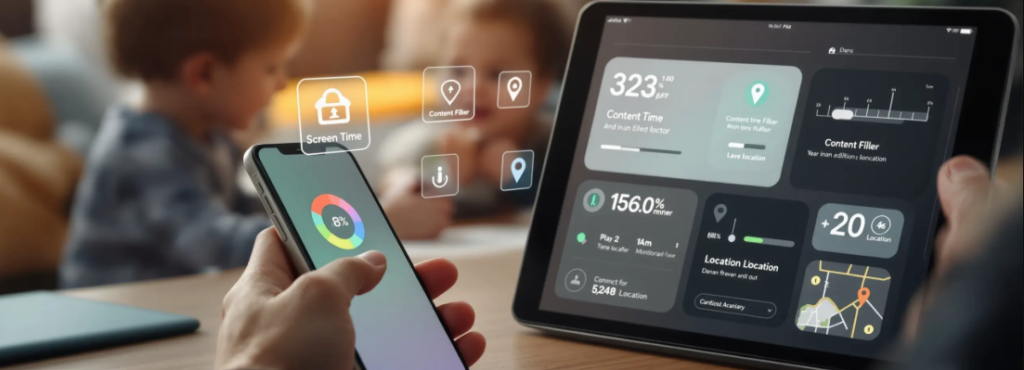
Why I Decided to Monitor My Kid’s Tablet
Look, I’m not a helicopter parent. I want my son to explore, learn, and even waste some time on dumb videos — that’s part of being a kid. But tablets are different from the TV I grew up with. They’re personal, portable, and always connected.
Here’s what scared me into action:
- The sleep thing: My son started sleeping worse. He’d sneak his iPad after bedtime. I’d find him exhausted at breakfast.
- The content rabbit hole: One innocent YouTube search led to recommended videos that were definitely not age-appropriate. It happens fast.
- Strangers online: He started playing Roblox with “friends” — except he didn’t actually know them in real life. That gave me chills.
- The tantrums: When I’d say “time’s up,” he’d melt down like I’d taken away his oxygen. That’s when I knew the screen had too much control over him.
- Hidden purchases: I almost had a heart attack when I saw a $30 in-app purchase for some gem pack. He didn’t even know he’d done it.
So I started researching. And here’s the honest truth: you don’t need to spend a dime to get started.
Best Free Parental Control Apps for Tablets
If someone tells you that free options are useless, they’re either trying to sell you something or they haven’t actually tried the built-in tools. Apple and Google have poured serious resources into parental controls over the last few years.
Apple Screen Time (iPad) — My Favorite for Younger Kids
This one comes built into every iPad (iPad mini, iPad Air, iPad Pro). No downloads, no subscriptions, no BS.

What actually works:
- Downtime: I set my son’s iPad to lock completely from 9 PM to 7 AM. No games, no YouTube, no nothing. He complained for the first week, but now he actually sleeps better.
- App Limits: I gave him 45 minutes for gaming apps and 30 minutes for YouTube. Once time runs out, the app greys out. He’s learned to prioritize which videos are worth watching.
- Content Restrictions: I blocked adult websites and turned off explicit music. It’s not perfect — more on that below — but it catches 90% of the garbage.
- Ask to Buy: Every time he tries to download a new app, I get a notification. He has to “ask” me, and I approve or deny remotely. This saved me from at least ten junk games.
The setup trick nobody tells you:
Go to Settings > Screen Time on your child’s iPad. Select “This iPad is my child’s.” Then — and this is critical — set a Screen Time passcode that is NOT your device passcode. I used my wife’s birthday the first time, and my son figured it out in three days. He disabled the limits himself and I didn’t notice for two weeks. Yes, I felt stupid.
Use a completely different passcode. Write it down somewhere safe. Don’t use it for anything else.
Where Apple Screen Time fails:
- Web filtering only works in Safari. If your kid downloads Chrome or Firefox, the filters don’t apply. Ask me how I found out.
- No social media monitoring. You won’t see what they’re doing inside Instagram or Snapchat.
- No location tracking. You’ll need “Find My” for that (also free, but separate).
Bottom line: For kids under 12, Screen Time is more than enough. For teens, you might need more.
Google Family Link — Free Parental Control Apps for Android Tablets
For Android tablets, Family Link is Google’s free offering. It’s not as polished as Screen Time, but it gets the job done.
What actually works:
- Daily limits: I set max screen time per day, plus a bedtime lock. The tablet becomes a brick after 9 PM.
- App approvals: Every app install requires my permission. My nephew tried to install some shady “free gems” app and I blocked it immediately.
- Chrome filtering: I turned on SafeSearch and blocked adult content. It works fine within Chrome.
- Location tracking: This is the one big feature Google has over Apple. I can see where the tablet is at any time. Great for peace of mind.
The massive pitfall I ran into:
Family Link only works if your child uses a Google account designated as a child account (under 13). If your kid already has a regular Google account, you’re out of luck — you’d have to create a new one and migrate everything. I didn’t know this and wasted an entire afternoon trying to link my nephew’s existing account.
Also: the web filtering only works in Chrome. If your kid installs Opera, Brave, or DuckDuckGo, those are wide open. Not great.
And here’s the expiry date: once your child turns 13, they can “graduate” out of Family Link and shut off your supervision. Bye-bye controls.
Bottom line: For younger kids (under 13) using Android tablets, Family Link is the best free option. But you need to set it up at the account-creation stage, not later.
Other Free Options — Mobicip and Qustodio
If you want something beyond the built-in tools, both Mobicip and Qustodio offer free plans. They’re not as powerful as the paid versions, but they’re decent supplements.
Mobicip Free:
- Website blocker (basic)
- Instant pause button for family time
- One device only
Qustodio Free:
- Daily screen time limits
- Website and search monitoring
- Web filtering by category (gaming, adult, gambling)
- 7-day activity history
The catch: both free plans are limited to one device and lack app blocking and social media monitoring. They’re good if you want a quick second layer, but I wouldn’t rely on them as your primary solution.
Note: Both apps do offer free trials. However, if you don’t cancel the auto-renewal before the trial ends, you’ll be automatically charged nearly $100 — a steep fee that many users have complained about in forums. So it’s worth setting a reminder to cancel if you’re not satisfied.
When Free Just Isn’t Enough — The Paid Apps
After using Screen Time for a few months, I started hitting its limits. My son is now 12, and he’s moved from YouTube to TikTok and messaging apps. I couldn’t see what he was doing in there, and that bothered me.
So I looked into paid monitoring apps. Here’s the honest breakdown.
Spynger — Aggressive, Feature-Packed, but Expensive
Spynger is a heavy-duty monitoring tool. It’s not subtle — it’s designed for parents who want to see everything.
How it works:
You need physical access to your child’s tablet for about 10 minutes to install it. After that, you monitor everything from a web dashboard on your own phone or computer. The app runs in stealth mode — your kid likely won’t know it’s there.
What Spynger tracks:
- GPS location with history (where they’ve been all day)
- Call logs and SMS messages
- All installed apps and usage time
- Social media and messaging app activity (WhatsApp, Instagram, Snapchat, etc.)
- Browsing history
My honest take:
If you genuinely believe your child is in danger — talking to strangers, accessing harmful content, or you need absolute visibility — Spynger gives you that power. It’s comprehensive.
But here’s the thing: it costs $47.10/month. In addition to monthly plans, users can purchase a quarterly subscription for under $85, offering better value for long-term monitoring. And there’s no free trial, which I found frustrating. How do I know if it’ll even work on my kid’s tablet before paying?
And honestly? The stealth mode made me uncomfortable. If my son found out I was spying on him without his knowledge, our trust would be wrecked. I ended up having a conversation with him instead (more on that at the end).
The app’s official website clearly states that users can take advantage of a 30-day money-back guarantee. This policy may give parents the confidence to test the app’s full range of features without worrying about wasting their money.
Price: ~$45.99/month
Parentaler — The One I Actually Liked
Between the three paid apps, Parentaler is the one I’d personally lean toward. Why? Because it doesn’t try to be a spy tool — it feels more like a parental dashboard.
How it works:
Similar setup — install on your child’s tablet, then monitor from your parent app. But Parentaler is more upfront about what it does. There’s no secret stealth mode (though there is adiscreet option). It feels less creepy.
What Parentaler offers:
- Screen time limits and schedules
- Web content filtering (works across browsers, not just one)
- GPS location tracking with geofencing — I set up a “home” zone and get an alert if my son leaves it outside school hours
- Social media activity monitoring — not just which apps, but what they’re sharing and who they’re chatting with
- Custom alerts — I set triggers for certain keywords and got notified immediately
What I appreciated:
The dashboard is clean. It took me 5 minutes to set up. And Parentaler covers screen time, content filtering, location, and social monitoring all in one app — most competitors make you buy separate features.
Parentaler offers robust screen time management tools, allowing parents to set daily app limits and create custom schedules (e.g., blocking social media during homework time and locking all games before bedtime). A key advantage cited by users is its resistance to being bypassed by tech-savvy kids.
The downside: still expensive. But at least they offer a free trial (I think they do — double-check before buying). According to available information, Parentaler provides a 14-day money-back guarantee. This functions as a free trial period, enabling users to explore all features without any financial risk prior to purchase.
Price: 1 month $42.69; 3 months $24.40/mo; 12 months $10.17/mo
Eyezy — Real-Time Alerts, But Mixed Reviews
Eyezy focuses on real-time safety alerts. You set safe zones, monitor location, and get notifications when something seems off.
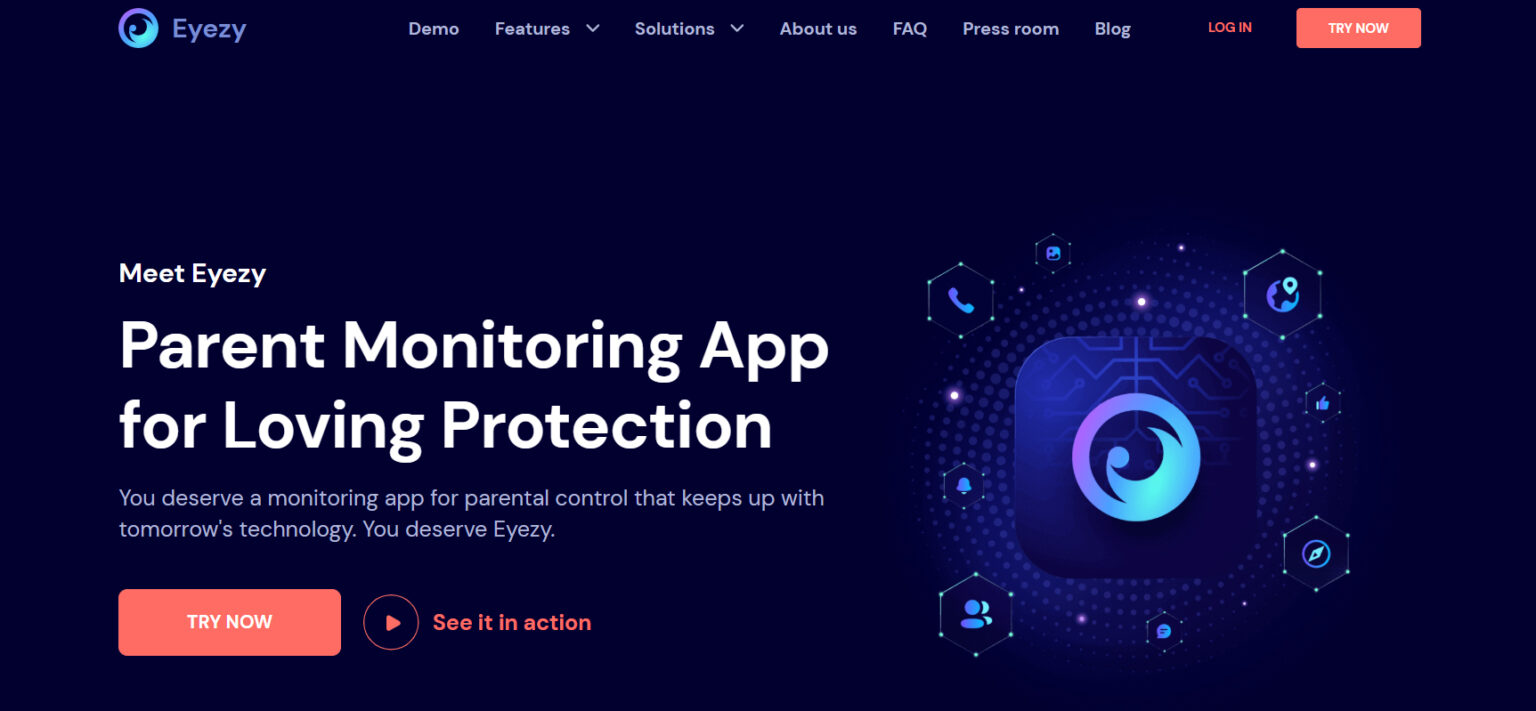
How it works:
Install on your kid’s Android tablet or iPad, set up geofences and filters, and you get live alerts through the Eyezy parent app.
Key features:
- Real-time GPS location tracking with history
- Geofencing — get alerts when your child enters or leaves safe zones (school, home, etc.)
- App blocking — restrict specific apps remotely
- In-app messenger — a dedicated chat feature for parents and kids to stay connected
My concern:
I read through user reviews and saw a lot of mixed feedback. Some parents loved it. Others complained about functionality issues — location tracking not updating, alerts arriving late, and poor customer service when they tried to fix it.
That made me nervous. For $38.39/month, I’d expect everything to work flawlessly. And the 3-day free trial didn’t feel long enough to really test it.
Price: 1 month: $38.39; 3 months: $22.39/mo; 12 months: $7.99/mo; | 3-day free trial
Which One Should You Actually Use?
Here’s my honest, no-BS recommendation based on what I learned the hard way.
Stick with Free If:
- Your child is 12 or under
- Your main needs are screen time limits, bedtime locks, and blocking adult websites
- You’re comfortable having occasional conversations about screen usage
- You don’t need to read their text messages or social media DMs
Apple Screen Time and Google Family Link are completely free, reliable, and already installed. They’re the perfect starting point. I used Screen Time for over a year before I felt the need to upgrade.
Consider Paid Apps If:
- Your child is 13+, active on social media, and has their own phone/tablet
- You’re worried about who they’re talking to online
- You need GPS location tracking regularly (though Family Link already offers this on Android)
- You want alerts for risky keywords or suspicious behavior
- You have the budget ($45+/month)
Between the paid apps: I’d personally choose Parentaler for its balance of features and user-friendly dashboard. Spynger feels too invasive for my taste, and Eyezy’s mixed reviews worry me. But everyone’s situation is different — if you need absolute stealth and maximum data, Spynger is technically more comprehensive.
One Final Thought (The Most Important Part)
Here’s what I wish someone had told me when I started this journey.
Apps don’t replace conversations.
When I installed Screen Time without explaining it to my son, he got angry. He felt spied on. He started trying to break the restrictions — changing the time, resetting the iPad, downloading alternative browsers.
When I sat down with him and explained, “Look, I’m not trying to control you. I’m trying to keep you safe. The internet has some really dark corners, and you’re not old enough to navigate them alone yet,” something shifted. He still complained about limits, but he stopped trying to bypass them.
Here’s what I do now:
- We set screen time limits together. I ask him what he thinks is reasonable. He says 2 hours. I say 1. We meet at 1.5 hours.
- He knows that if he wants more time for something specific (like finishing a project or playing with a friend), he can ask me and I’ll usually approve it.
- If he finds something weird online, he tells me about it instead of hiding it. That only happened because I didn’t shame him when it first happened.
The tools help. But trust helps more.
Quick Recap Table
| Free | Paid | |
|---|---|---|
| Best for | Kids under 12 | Teens 13+ / social media users |
| Core tools | Screen Time (iPad) / Family Link (Android) | Spynger / Parentaler / Eyezy |
| Cost | $0 | ~$39-46/month |
| Screen time limits | ✅ Yes | ✅ Yes |
| Web filtering | ✅ Yes (limited browsers) | ✅ Yes (all browsers) |
| App blocking | ✅ Yes | ✅ Yes |
| Social media monitoring | ❌ No | ✅ Yes |
| GPS location | ⚠️ Only Family Link on Android | ✅ Yes |
| Stealth mode | ❌ No | ✅ Yes (some apps) |
| Trust impact | Low | High (if child discovers it) |
My Final Word
Start with the free built-in tools. Seriously. They’re excellent for 80% of families, and they cost nothing.
Only upgrade to paid monitoring if you have a specific concern that free tools can’t address — like monitoring social media messages, or tracking location across multiple devices.
And whatever you do, talk to your kids about it first. That single step made all the difference for me and my son. We still argue about screen time sometimes — he’s 12, that’s what they do — but at least he knows I’m on his side.