
Stop guessing which MKV files your Samsung TV will play. Learn 3 simple ways to watch MKV movies via USB, DLNA, or screen mirroring. No matter which of the three methods you try, you'll hit the same wall—your Samsung TV just won't play those MKV files. That's exactly why you need a solid converter to transcode MKV into a format that works everywhere. And honestly, Acrok Video Converter Ultimate is the clear winner.


You've downloaded a great MKV movie, plugged your USB drive into your Samsung Smart TV, and… nothing. The file shows up but won't play. Or worse, the TV doesn't even recognize it.
If this sounds familiar, you're not alone. Many Samsung TV owners face this exact issue. The good news? There are three simple ways to solve it—and you don't need to be a tech expert to do any of them.
Before we dive into the methods, let's understand why this happens in the first place.
Here's the key thing to understand: MKV is just a container—think of it like a box that holds video, audio, and subtitle tracks together. The box itself isn't the problem. What's inside the box—the video and audio codecs—determines whether your Samsung TV can play it.
Samsung Smart TVs do support MKV files. According to Samsung's official specifications, supported containers include MKV, MP4, AVI, MOV, 3GP, ASF, and more. However, Samsung TVs only recognize MKV files that use specific codec combinations. The HEVC (H.265) codec, for example, is only supported within MKV, MP4, and TS containers. If your MKV file uses unsupported video or audio codecs—like DivX or DTS on newer models—your Samsung TV simply won't play it.
Common symptoms include:
Samsung Smart TVs support a wide range of video formats via USB, including AVI, MKV, ASF, MP4, 3GPP, VRO, VOB, PS, and TS. The TV supports USB drives formatted with FAT, exFAT, and NTFS file systems.
However, even with supported containers like MKV, playback depends entirely on the codecs used inside. For optimal compatibility, Samsung TVs generally support:
| Container | Supported Video Codecs | Supported Audio Codecs |
|---|---|---|
| MKV (.mkv) | H.264, HEVC (H.265), MPEG-4, Motion JPEG | AAC, MP3, PCM |
| MP4 (.mp4) | H.264, HEVC (H.265), MPEG-4 | AAC, MP3, Dolby Digital |
| AVI (.avi) | MPEG-1, MPEG-2, Xvid, H.264 | PCM, MP3, AAC |
The best video format for Samsung TV USB playback is typically MP4 with H.264 video codec and AAC audio codec—this combination offers the broadest compatibility across virtually all Samsung TV models, from older LED units to the latest QLED and OLED screens.
Now, let's look at three simple ways to play MKV files on your Samsung Smart TV.
This is the most straightforward method. If your Samsung TV has a USB port (most models do), you can transfer MKV files to a USB drive and plug it directly into the TV.
Step 1: Prepare Your USB Drive
Make sure your USB drive is formatted with a file system your Samsung TV supports—FAT32, exFAT, or NTFS. For files larger than 4GB, you'll need to use exFAT or NTFS, as FAT32 has a 4GB file size limit.
Step 2: Copy MKV Files to the USB Drive
Transfer your MKV movies to the USB drive. Keep file names short and avoid special characters—this can sometimes cause playback issues.
Step 3: Connect the USB Drive to Your Samsung TV
Insert the USB drive into the USB port on your Samsung TV (usually located on the side or back of the device).
Step 4: Open the Media Player
Using your TV remote, press the Source or Media button and select USB or Media Player. The TV will automatically scan for compatible files.
Step 5: Select and Play Your MKV File
Navigate to the folder containing your MKV file and select it to start playing.
If your MKV file won't play via USB, it's almost certainly a codec compatibility issue. The most reliable solution is to convert the MKV file to a format your Samsung TV fully supports—which leads us to Method 3 (the recommended approach).
DLNA (Digital Living Network Alliance) allows you to stream media from your computer or mobile device to your Samsung TV over your home Wi-Fi network. This method eliminates the need for a USB drive altogether.
Step 1: Connect Devices to the Same Wi-Fi Network
Make sure both your Samsung TV and the device containing the MKV file (computer, laptop, or NAS) are connected to the same Wi-Fi network.
Step 2: Set Up a DLNA Media Server on Your Computer
You'll need DLNA server software on your computer. Popular options include:
Step 3: Enable DLNA on Your Samsung TV
On your TV remote, press the Source or Media button and select DLNA or AllShare. The TV will search for compatible DLNA devices on your network.
Step 4: Select Your Device and Play the MKV File
Once your computer appears in the list, select it, navigate to the folder containing your MKV file, and start playing.
Network speed matters—Wi-Fi congestion can cause buffering or stuttering
Codec compatibility still applies—even via DLNA, your Samsung TV will only play MKV files with supported codecs
Not all DLNA servers are created equal—some may not transcode MKV files properly for Samsung TVs
Requires both devices to remain powered on and connected to the same network
Some DLNA servers like Plex can transcode MKV files on the fly—converting the video to a Samsung-friendly format in real-time as it streams. This means you don't need to convert the file beforehand, but it requires a reasonably powerful computer to handle the transcoding.
If you have an MKV file stored on your smartphone or tablet, you can mirror your device's screen directly to your Samsung TV. This method uses Samsung's Smart View or SmartThings app.
Step 1: Connect Both Devices to the Same Wi-Fi Network
Ensure your phone/tablet and Samsung TV are connected to the same Wi-Fi network.
Step 2: Download the SmartThings App
Download and install the SmartThings app on your mobile device from the Google Play Store or Apple App Store.
Step 3: Enable Screen Mirroring
Step 4: Start Mirroring
Tap Start or Begin to start mirroring your phone screen to your TV. Once connected, open any media player app on your phone (like VLC or the default video player) and play the MKV file. The video will appear on your TV screen in real-time.
For Samsung phone users, Tap View offers an even simpler option—just tap your phone against your Samsung TV to start mirroring instantly. Make sure your SmartThings app is updated to version 1.7.45 or later.
While all three methods above can work, they all share the same fundamental limitation: your Samsung TV still needs to recognize the codecs inside the MKV file. If the codecs aren't supported, none of these methods will work reliably.
The most reliable and future-proof solution is to convert your MKV files to a format that your Samsung TV fully supports. A professional TV Format Converter can handle this task efficiently.
Acrok Video Converter Ultimate is a full-featured MKV to Samsung TV Converter that transforms MKV files into Samsung-friendly formats with just a few clicks.
Samsung-Specific Presets – The software comes with pre-configured output profiles for Samsung Smart TVs. Simply select the Samsung profile, and Acrok automatically applies the correct video and audio settings—no manual configuration needed.
Broad Format Support – It accepts virtually any video format as input—MKV, AVI, WMV, MP4, VOB, MOV, MTS, MXF, BIN and more—and converts them to Samsung TV USB supported video format like MP4, MOV, and AVI.
Hardware Acceleration – The software supports hardware acceleration for significantly faster processing speeds, so you won't have to wait hours for large MKV files to convert.
4K and H.265 Support – If you have a Samsung 4K or 8K TV, Acrok supports 4K UHD and H.265/HEVC conversion, ensuring your high-quality videos look stunning on your Samsung screen.
Built-in Video Editing – Before conversion, you can trim, crop, merge, add subtitles (.srt, .ass, .ssa), and adjust video effects.
Batch Conversion – Need to convert multiple MKV movies at once? Acrok supports batch processing, letting you add several files simultaneously.
Cross-Platform – Available for both Windows and Mac operating systems.
Step 1: Load MKV Videos
Launch Acrok Video Converter Ultimate on your computer. Click the Add File button to browse for and add your source MKV videos. Batch conversion is supported, so you can load multiple files at once.
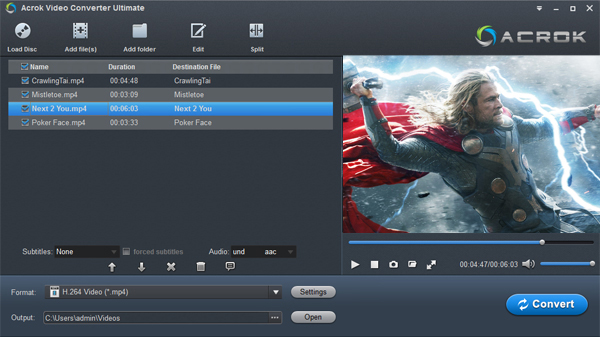
Step 2: Choose Samsung TV Supported Format
Click the Format drop-down menu. Navigate to the HDTV section and select a Samsung TV preset—typically something like "Samsung TV (*.mp4)" or "HDTV 1080P Video (*.mp4)". This preset comes equipped with Samsung TV supported video and audio codecs.
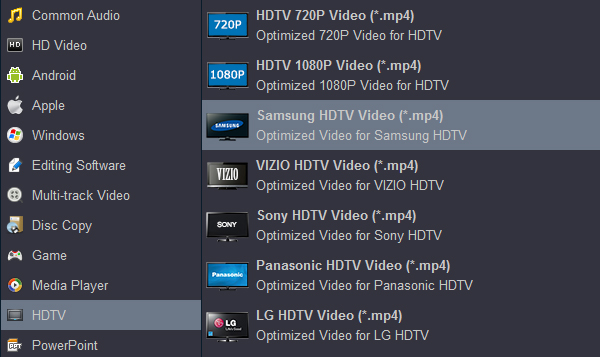
For Samsung 4K/8K TV models: You can click the Settings icon next to the format to open the profile settings window. Adjust the resolution to 3840×2160 (4K) or higher to match your Samsung TV's capabilities.
Step 3: Start the MKV to Samsung TV Conversion
Once you've selected the output format, click the Convert button to begin the conversion process. Thanks to hardware acceleration, the conversion completes faster than most competing tools.
Step 4: Transfer to USB and Play on Samsung TV
After conversion, connect your USB drive to your computer. Transfer the converted files to the USB drive, safely eject the drive, plug it into your Samsung TV's USB port, and enjoy your MKV movies on the big screen.
| Issue | Possible Solution |
|---|---|
| USB drive not recognized | Format to FAT32, exFAT, or NTFS |
| MKV file shows but won't play | Convert to MP4 with H.264/AAC using a TV Format Converter |
| Only audio plays, no video | Video codec is unsupported—convert the file |
| Video stutters or buffers | Use a USB 2.0 port instead of USB 3.0, or check Wi-Fi for DLNA |
| Subtitles not showing | Embed subtitles during conversion (.srt, .ssa supported) |
| File not appearing in menu | Check that USB has fewer than 1,000 files per folder |
The best parental control and web filtering software. Complete visibility and control over your child's online activity. Sign up today to start.
Playing MKV movies on your Samsung Smart TV doesn't have to be complicated. You have three simple options:
However, all three methods share the same fundamental limitation: your Samsung TV must support the specific codecs inside the MKV container. That's why the most reliable, frustration-free solution is to use a professional TV Format Converter like Acrok Video Converter Ultimate to convert your MKV files to MP4 with H.264 video and AAC audio—the best video format for Samsung TV.
Whether you choose USB, DLNA, or screen mirroring, understanding Samsung TV USB supported video format requirements will save you countless hours of trial and error. And with the right MKV to Samsung TV Converter, you can convert your entire MKV collection in batch, ensuring every movie plays perfectly on your Samsung Smart TV—every single time.
Now grab your USB drive, fire up your converter, and start enjoying your MKV movie collection on the big screen.
The Best Parental Control App for Android & iPhone in 2026! Keeping Your Kids Safe Online.
This software is for legal use only. Do not install on devices you do not own; prior owner consent may be required by law. Violations can result in fines or criminal charges. Consult your legal advisor before use. You assume full liability for any installation; we disclaim all responsibility.
Copyright © 2026 parentaltool.com. All Rights Reserved.