Summary: Learn how to monitor your child's iPhone 17 activity safely using Apple's Screen Time, Family Sharing and iOS monitoring app (Parental Control App for iPhone 17). Step-by-step guide to set app limits, block adult content, enable Ask to Browse, and track screen time—all while protecting your child's privacy. Perfect for parents of kids aged 6–17.
"I bought my child an iPhone 17. It brings him convenience, sure—but it also brings me a fair share of headaches, and honestly, a lot of anxiety. Because he doesn't have great self-control. Lately, I keep seeing news stories about teenagers getting involved in crimes—and in most cases, they were first groomed or incited online, and then carried out the acts in real life. I want my kid to stay as far away as possible from those criminals that make every parent's blood boil. I want to know what he's doing online, in real time. How can I make that happen? – From A DAD"
If you feel the same way, you're not alone. Here's what I've learned after trying every tool out there.
Giving your child an iPhone 17 feels like handing them the keys to a city. It's exciting—they can learn, connect with friends, and explore the world from their pocket. But let's be honest: it also opens doors you didn't know existed. Excessive screen time, accidental exposure to adult content, online predators, and cyberbullying are real threats.
That's not fear-mongering. That's just parenting in 2026.
So what can you do? You could bury your head in the sand. Or you could equip yourself with the right tools. In this guide, I'll walk you through three options—Screen Time, Family Sharing, and Parentaler—and explain why, after trying all of them, I believe the smartest move is to use all three together.
1. Screen Time (Apple Built-in)
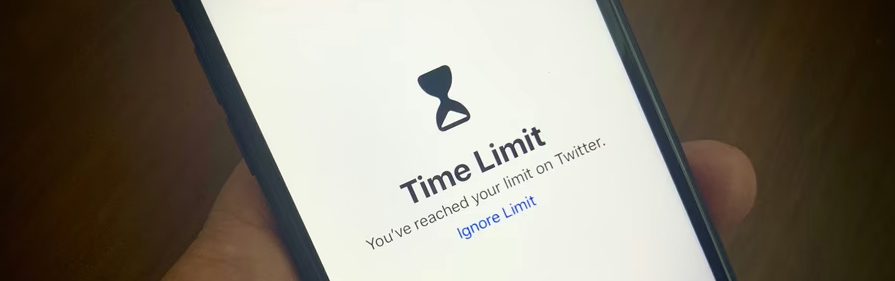
Screen Time is Apple's free, built-in dashboard for understanding and limiting how your child uses their iPhone 17 and other iOS phones. It's the first thing most parents discover—and for good reason.
What It Does
- Tracks usage – Shows you exactly which apps your child opens most often, how many times they pick up the phone each day, and which apps are buzzing with notifications.
- Manages contacts – Limits who your child can call, message, or FaceTime.
- Schedules Downtime – Locks everything except approved apps during homework or bedtime hours.
- Filters content – Blocks adult websites, restricts explicit music/podcasts, and controls App Store purchases.
- Sets App Limits – Lets you cap daily time on entire categories like social media or games.
Step-by-Step Setup
If your child is in your Family Sharing group (using your iPhone):
- Open Settings → tap Screen Time.
- Under “Family,” tap your child's name.
- Follow the prompts to set age-appropriate restrictions, then lock everything with a Screen Time passcode that only you know.
Setting it up directly on your child's iPhone 17 (no Family Sharing yet):
- Open Settings → tap Screen Time.
- Tap App & Website Activity → tap Turn On App & Website Activity.
- Scroll down, tap Lock Screen Time Settings, and create a 4-digit passcode.
Pro tip: For children under 13, you'll need to create a child account through Family Sharing. Apple automatically applies recommended safeguards based on their age, which saves you a ton of guesswork.
What I Like 👍
- Privacy-conscious – All data stays within Apple's ecosystem.
- Completely free – No subscription, no hidden costs.
- Zero installation – It's baked right into iOS.
- Works across devices – The same rules apply to their iPad and Mac too.
What Frustrates Me 👎
- No social media visibility – You'll have no idea what's happening inside Instagram DMs or WhatsApp chats.
- You can't see actual messages – Usage reports tell you how long they spent on Messages, but not who they talked to or what they said.
- Weekly summaries only – You get a recap on Monday morning. By then, the damage may already be done.
- Kids find workarounds – I learned this the hard way. My son discovered he could bypass App Limits by going into Settings → General → Date & Time and manually rolling the clock back. I eventually locked that down by turning off “Set Automatically” and setting a Screen Time passcode—but it took me a week to figure out what he was doing.
2. Family Sharing (Apple Built-in)
Think of Family Sharing as the foundation. Without it, advanced Screen Time controls simply don't work. It's the glue that ties your Apple devices together as a family.
What It Does
- Creates a child account – Sets up an Apple Account with age-appropriate restrictions from day one.
- Ask to Buy – Requires your approval for every app download or in-app purchase. Yes, even the free ones.
- Ask to Browse – New in iOS 27: your child must ask permission before visiting any new website in Safari.
- Location sharing – See where your child is, and help them find a lost device.
- Enables Screen Time management – Lets you control Screen Time remotely from your own iPhone, rather than fiddling with your child's device.
How to Set It Up
On your iPhone:
- Open Settings → tap your name at the top → tap Family Sharing.
- Tap Add Member.
- If your child doesn't have an Apple Account, tap Create an Account for a Child. If they already have one, tap Invite People.
- Follow the rest of the prompts. Once they're added, you can return to Screen Time and start configuring content restrictions.
Heads-up: Family Sharing isn't optional—it's a prerequisite. You can't access Screen Time parental controls without it. So get this done first, before you try anything else.
What I Like 👍
- Free and essential – No cost, and absolutely necessary for monitoring.
- Centralized management – Purchases, communications, and screen time all live in one place.
- Smart defaults – Apple adjusts safeguards based on your child's age, so you don't have to be a tech expert.
What Frustrates Me 👎
- Still no message content – Like Screen Time, it can't reveal what's actually being said in conversations.
- Setup takes time – It's not complicated, but you do need to sit down and go through each menu carefully.
- Apple-only – It only works with Apple devices. If your child also uses an Android tablet or a Windows PC, you're on your own.
- It's an enabler, not a monitor – Family Sharing gives you the ability to monitor, but it doesn't actually show you any activity itself.
3. Parentaler (Third-Party)
Now we're getting into the heavy artillery.
Parentaler is a paid third-party app that fills the gaps Apple left wide open. It doesn't just tell you how long your child used an app—it shows you what they did inside it.
What It Does
- Monitors messages – Reads iMessages, SMS, call logs, contacts, and even encrypted chats from WhatsApp (provided they back up to iCloud).
- Tracks social media – Shows conversations across platforms and flags risky keywords like “suicide,” “sex,” or “kill” in real time.
- Filters the web – Blocks entire categories of sites (porn, gambling, violence) across all browsers—including incognito mode.
- Geofencing – Lets you create safe zones (like home or school) and sends an alert the moment your child leaves them.
- Remote lock – Locks the device from your dashboard if you need to intervene immediately.
- Screen recording – Captures screen activity so you can see exactly what they were looking at.
- Cross-platform – Monitor an iPhone 17 from an Android phone, or vice versa.
How to Set It Up
- Go to the Parentaler website and create an account.
- For iPhone 17 monitoring: enter your child's iCloud credentials. That's it. No app needs to be installed on their device—Parentaler pulls data directly from their iCloud backup.
- For Android smartphone monitoring: install the Parentaler app on the target phone (one-time installation).
- Log into your dashboard from any device to view reports, set limits, and receive alerts.
Setup takes about 5 minutes—seriously. I timed it.
What I Like 👍
- Unmatched visibility – You can finally see messages, chats, browsing history, and even deleted content.
- Real-time alerts – You don't have to wait until Monday. You'll know immediately if something concerning happens.
- Hard to bypass – Blocks VPNs and proxies, so determined kids can't easily slip through the cracks.
- No jailbreak required – It works legally and safely through Apple's iCloud backup API.
What Frustrates Me 👎
- Not free – It's a subscription. But there's a free trial, so you can test it before committing.
- Requires iCloud credentials – You'll need your child's Apple ID email and password. If they change it without telling you, you'll lose access.
- Ethical tightrope – Experts agree that monitoring works best when paired with transparency. If your child discovers you're tracking them without their knowledge, it could backfire badly.
A little honesty goes a long way: “We're using these tools because we love you and want to keep you safe.” It's not a perfect conversation, but it's better than the alternative.
Why I Recommend Parentaler
Let's be blunt. Screen Time and Family Sharing are great—for basic stuff. They're the equivalent of putting a speed bump in your driveway. Parentaler is like installing a full security system with cameras and motion detectors.
Here's a side-by-side comparison that tells the whole story:
Here's what sealed the deal for me.
One afternoon, my son came home from school looking withdrawn. He didn't want to talk. I checked his Screen Time report—it told me he'd spent 47 minutes on Messages that day. That was it. No context. No clue what happened.
Had I been using Parentaler, I would have seen the exchange with a classmate that left him in tears. I would have known what was going on before he walked through the front door. That's the difference between reactive parenting and proactive parenting.
Here are four reasons I think Parentaler is worth every penny:
- It shows you what actually matters. Screen Time tells you how long your child used an app. Parentaler tells you what they did—who they talked to, what they said, and whether they're being groomed or bullied.
- You get alerts in real time. You don't have to wait for a weekly digest. If a predator messages your child, or if they enter a dangerous keyword into a search bar, your phone buzzes immediately.
- Kids are crafty. They figure out workarounds. Screen Time is, as one parent put it, “honestly just a speed bump for determined kids.” Parentaler blocks VPNs and proxies, so it's much harder to bypass.
- Peace of mind is priceless. One reviewer summed it up perfectly: “Parentaler is hands-down the best for responsible monitoring. It gives me significant peace of mind without breaking the bank.” I couldn't agree more.
Final Thoughts: Why Monitoring Is Non‑Negotiable
I'll say it plainly: monitoring your child's iPhone 17 activity isn't about suspicion, control, or helicopter parenting. It's about protection in a world that wasn't built for children.
- Cyberbullying is everywhere. One out of every five kids experiences it online. Keyword alerts can help you catch it early—before it escalates into depression or worse.
- Predators are sophisticated. They know how to gain a child's trust. Monitoring communications gives you a vital early warning system.
- Screen time takes a toll. The American Academy of Pediatrics links excessive social media and gaming to anxiety and sleep disorders. Apple's new Time Allowances—based on peer‑reviewed research—are a step in the right direction.
- Kids make mistakes. They stumble into inappropriate content, sometimes by accident. Content filters act as a safety net, not a punishment.
“No app creates genuine trust—only consistent, open communication without judgment does that.”
That's the real takeaway here. The tools we've discussed—Screen Time, Family Sharing, and Parentaler—are just that: tools. They support your parenting, but they don't replace it.
My final recommendation:
-
Start with Family Sharing to set up your child's account and unlock all the necessary controls.
-
Layer on Screen Time for daily usage limits, downtime schedules, and basic content filtering.
-
And then, if you truly want to know what's happening in your child's digital world, add Parentaler for the deep visibility and instant alerts that Apple simply doesn't offer.
Monitor with transparency. Have honest conversations with your child about why you're using these tools. And remember: the goal isn't to control every minute of their day—it's to give them the freedom to explore, learn, and grow, while keeping a caring hand on their shoulder when they need it most.
Because at the end of the day, our job isn't to keep them in a bubble. It's to teach them how to navigate the world—and make sure they know we're always there to catch them if they fall.